
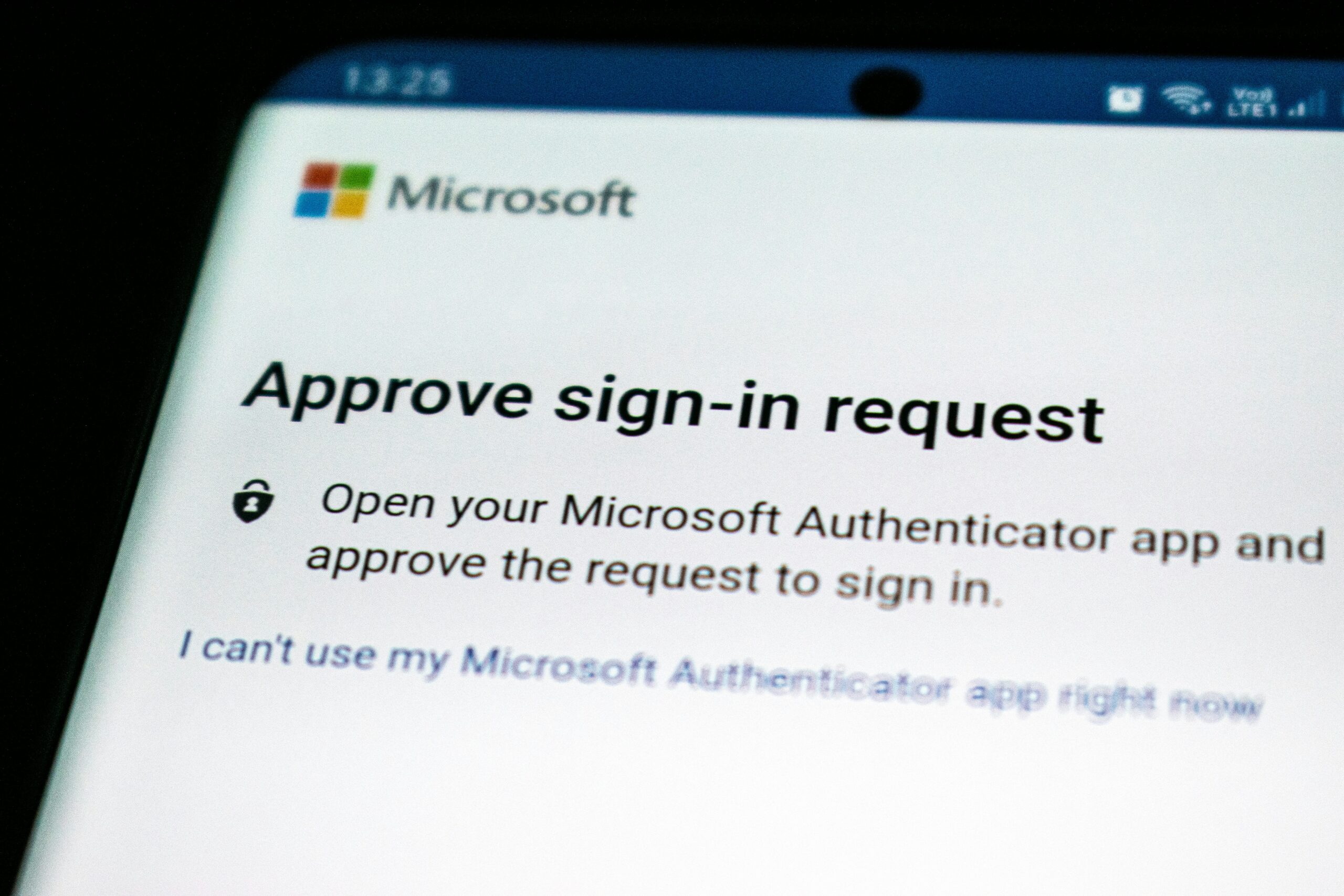
Setup MFA for Business
Most business owners we talk to say MFA is already turned on. Then we take a look and find a few people who never finished setting it up, an admin account that was left out “just for now,” text message codes on the owner’s phone, and an old email connection that skips MFA entirely. Those gaps are exactly what attackers look for.
Set up correctly, multifactor authentication is one of the most effective protections a business can have. Microsoft’s research found that MFA reduces the risk of account compromise by 99.22%. This guide walks through how to set it up so you actually get that protection, with a focus on Microsoft 365, since that’s where most Tri-Cities businesses keep their email and files.
Step 1: Make sure MFA covers every account
Microsoft 365 gives you two ways to require MFA for everyone:
- Security defaults. Free with every Microsoft 365 tenant. Security defaults require every user to register for MFA, require MFA every time an administrator signs in, and block older sign-in methods that can’t do MFA. Users now have to register at their first sign-in, with no 14-day grace period. The catch is that it’s all or nothing, with no exceptions or fine-tuning.
- Conditional Access. Lets you set your own rules, such as requiring MFA for everyone, blocking sign-ins from other countries, or requiring a company-managed device. It needs Microsoft Entra ID P1, which is included in Microsoft 365 Business Premium. If you have it, Microsoft recommends Conditional Access over security defaults.
Either way, don’t stop at turning it on. Check the authentication methods registration report in the Microsoft Entra admin center for anyone who hasn’t registered. An account with no MFA method registered is an open door: whoever signs in first with the password gets to register their own phone.
Step 2: Choose the right MFA methods
Not all MFA is equal. Here are the common methods, from strongest to weakest:
- Passkeys and security keys. These are phishing-resistant, which means they won’t work on a fake sign-in page. A passkey can live in the Microsoft Authenticator app (iOS 17 or Android 14 and later), in Windows Hello on a laptop, or on a hardware security key like a YubiKey. CISA notes that only FIDO authentication, the standard behind passkeys and security keys, is phishing-resistant. Our guide to passkeys for business explains how they work.
- Authenticator app notifications with number matching. The sign-in screen shows a number, and you type it into the app to approve. This stops people from tapping “Approve” on a prompt they didn’t start. CISA recommends number matching as a solid step for organizations not yet ready for passkeys, and it’s what security defaults uses.
- Six-digit codes from an authenticator app. Better than text messages, but a convincing fake sign-in page can still ask you for the code.
- Text messages and phone calls. Use these only as a last resort. CISA’s advice is direct: “Do not use SMS as a second factor for authentication.” Text messages aren’t encrypted, and a thief can move your phone number to a new SIM card. Once a stronger method is set up, remove text messages from the account.
Step 3: Lock down admin accounts first
Administrator accounts can change everyone’s settings, so they need the strongest protection you have.
- Give admins a separate account for admin work, and have them use their regular account for email and everyday tasks. Our post on why employees shouldn’t have administrator access covers the reasoning.
- Use a passkey or security key for admin accounts, never text messages.
- Keep the number of Global Administrators small.
Microsoft now enforces part of this for you. MFA is required to sign in to the Azure portal, the Microsoft Entra and Intune admin centers, and the Microsoft 365 admin center, and there’s no opt-out.
Step 4: Set up two emergency access accounts
If your only admin loses their phone, or a bad rule locks everyone out, you need a way back in. Microsoft recommends two emergency access accounts, sometimes called break-glass accounts, set up like this:
- Cloud-only accounts on your onmicrosoft.com domain, not tied to any one employee.
- Protected by a passkey or security key that’s different from the method your regular admins use.
- Excluded from Conditional Access rules that could block them, so one bad rule can’t lock you out.
- Set to send an alert every time they’re used, and tested at least every 90 days.
- Credentials stored somewhere secure, like a safe, where only authorized people can reach them.
These accounts still need MFA. Microsoft’s admin portal requirement applies to emergency accounts too, which is why a passkey or security key is the right fit.
Step 5: Protect MFA registration
Here’s a gap most setups miss. If an attacker has the password to an account that isn’t fully set up, they can sign in and register their own authenticator app. From then on, MFA protects them, not you.
With Conditional Access, you can require MFA before anyone registers or changes their sign-in methods from outside your office network. For new hires, an admin issues a Temporary Access Pass, a short-lived code that lets them register their methods safely on day one.
Step 6: Close the back doors
Older email connections, like POP, IMAP, and basic SMTP sign-in, can’t handle MFA. If they’re still allowed, an attacker with a password can use them to skip MFA completely. Security defaults block them, and a Conditional Access rule can too.
Before you block them, check what still depends on them. Scan-to-email copiers, older accounting software, and website contact forms are the usual culprits. They typically need to move to a modern connection first, which is a quick fix with a little planning. For more settings worth checking, see 5 Microsoft 365 security settings to check in older tenants.
Step 7: Teach your team how MFA prompts work
- Never approve a sign-in you didn’t start. An unexpected prompt means someone else has your password. Deny it and tell IT right away.
- Never read a code to anyone over the phone. A real IT person or vendor won’t ask for it.
- Expect fake sign-in pages that look real. Some phishing kits sit between you and the real Microsoft sign-in page and steal your session after you finish MFA. Passkeys stop this, and our guide to spotting AI phishing emails covers what to watch for.
Step 8: Plan for lost phones and departures
- Register at least two methods per person, such as the Authenticator app plus a passkey on their laptop, so a lost phone doesn’t lock anyone out.
- Verify identity before resetting anyone’s MFA. Attackers call help desks pretending to be an employee with a new phone. A callback to a number you already have on file, or an in-person check, stops this.
- When someone leaves, remove their sign-in methods and end their active sessions as part of disabling the account. Our post on why bad onboarding causes messy offboarding covers the full process.
If you suspect an account has already been taken over, changing the password isn’t enough. Here’s how hackers keep access to your email after a password change.
Step 9: Turn on MFA everywhere else
Microsoft 365 is the big one, but it isn’t the only account that matters. Turn on MFA, ideally with a passkey or authenticator app, for:
- Online banking and payroll
- Your domain registrar and DNS provider, since whoever controls your domain controls your email
- Accounting software, such as QuickBooks
- Your business password manager
- Remote access tools, VPNs, and firewall admin pages
- Social media and Google Business Profile accounts
This matters at insurance renewal too. Cyber insurance applications commonly ask whether MFA is on for email, remote access, and admin accounts. Our guide to answering your cyber insurance application honestly explains why that answer needs to be accurate.
A quick MFA checklist
- Every user is registered for MFA, with no exceptions
- Admins use separate admin accounts protected by passkeys or security keys
- Two emergency access accounts exist, are protected, and get tested
- Text message codes are removed once a stronger method is in place
- Older sign-in methods like POP, IMAP, and basic SMTP are blocked
- Registering a new method requires MFA or a Temporary Access Pass
- Staff know to deny any prompt they didn’t start
- MFA is on for banking, your domain, accounting, and other key accounts
Need help setting up MFA?
Pacific Edge Technology sets up and manages MFA for businesses across Richland, Kennewick, Pasco, and the surrounding region. We’ll review your Microsoft 365 settings, find the gaps, and roll out MFA without locking anyone out. Learn more about our cybersecurity services and Microsoft 365 support, or contact us to schedule a review.
Sources
- Microsoft Research: How effective is multifactor authentication at deterring cyberattacks?
- Microsoft Learn: Security defaults in Microsoft Entra ID
- Microsoft Learn: Planning for mandatory multifactor authentication for Azure and other admin portals
- Microsoft Learn: Manage emergency access accounts in Microsoft Entra ID
- Microsoft Learn: Securing security info registration with Conditional Access
- Microsoft Learn: Enable passkeys in Microsoft Authenticator
- CISA: Mobile Communications Best Practice Guidance
- CISA: Guidance on phishing-resistant and number matching MFA
- Microsoft Security: Detecting and mitigating a multi-stage AiTM phishing and BEC campaign